Recent Posts

Pages: 1 ... 3 4 [5] 6 7 ... 10
41
Windows Operating Systems / How Do I Permanently Delete Files From My Hard Disk?
« Last post by admin on June 05, 2011, 10:52:19 PM »
Did you know that when you "delete" files from your computer, they can still remain on your hard disk? In many cases, deleted files can be recovered with little effort because most computer operating systems will only delete links to the data so they no longer appear to you, but the actual data remains on the disk. Getting access to the deleted data is as simple as restoring the links.

This method of deletion is fine for most circumstances--where security is not an issue--but you wouldn't want some people to recover your financial statements or medical records. For sensitive data, you need to make sure that your computer overwrites both the links to the information and the information itself.
Step-by-Step: Using Eraser

To make sure a file is truly gone, a number of tools are available. Eraser is a free and easy-to-use solution that will overwrite your private information with random patterns until the data is no longer recoverable. It works with nearly every version of Windows and offers a number of methods of overwriting your data, including methods approved by the Department of Defense.

Once installed, Eraser integrates nicely into Windows. Whenever you want to securely erase your data, follow these steps.

1. Navigate to the files or folders that you want to securely erase.

2. Right-click on the files and/or folders and an Eraser menu will appear.

3. Highlight and click Erase in the Eraser menu.


Eraser will automatically create the secure erase task and execute it immediately. You will be notified in a popup window when the task is complete and the files are permanently erased.


Eraser has a number of settings and options that you can configure, including securely deleting recycle bin contents and scheduling and automating secure deletion tasks.
Step-by-Step: Using SDelete

For users who don't need graphical interfaces, Microsoft has a downloadable command-line tool called SDelete. Here's how to use this tool.

1. Click Start > Run... , type cmd and press OK or Enter (Return). (Windows Vista and Windows 7 users can just click Start and type cmd in the Windows Search box.)

2. Navigate to where you have SDelete downloaded. For example, if it's located at C:\cmdtools, type cd C:\cmdtools, and press Enter.

3. Now type sdelete <path to file or directory>, and press Enter, where <path to file or directory> is a standard Windows path. For example, to delete C:\mysecuredata.txt, you would type sdelete c:\mysecuredata.txt, and press Enter.

4. Once they're deleted, you will receive confirmation that your files or folders have been permanently deleted, and you're done!


Now that you have the right tools for the job, you can feel confident in knowing that your data has actually been removed from your hard disk and will no longer be recovered by anyone (not even by you).

42
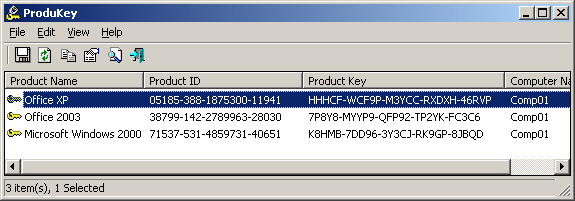
ProduKey is a small utility that displays the ProductID and the CD-Key of Microsoft Office (Microsoft Office 2003, Microsoft Office 2007), Windows (Including Windows 7 and Windows Vista), Exchange Server, and SQL Server installed on your computer. You can view this information for your current running operating system, or for another operating system/computer - by using command-line options. This utility can be useful if you lost the product key of your Windows/Office, and you want to reinstall it on your computer.


Download ProduKey (In Zip file)
http://www.nirsoft.net/utils/produkey.zip
43
Windows Operating Systems / Installing Backup in Windows XP Home Edition
« Last post by Alan on May 27, 2011, 11:01:10 PM »
Windows XP Professional Edition Backup

The backup utility can be found in Start-All Programs-Accessories-System Tools. The figure below shows the window that first opens. In this dialog box, you have a choice between Microsoft's step-by-step "Wizard" or the "Advanced Mode". We will first look at the "Wizard" mode. "Advanced Mode" is discussed on another page.


Click "Next" to open the window below. You have a choice of creating a new backup or restoring a previous backup. Make a selection and click "Next".


The next window appears if you are making a new backup. It gives you a choice of what to back up. You may wish to back up everything or just certain folders and/or files. Here we will pick "Let me choose what to back up". Click "Next".


A dialog box will open listing the contents of your computer. Select the particular folders and files that you want to back up. Click "Next".


Now choose where you want to put the backup and what you want to call it. If you are backing up the entire system, make sure that the backup medium has enough space. When you have chosen the destination, click "Next".

A point to remember is that the backup will be a single file and that FAT32 files cannot exceed 4 GB. If you have a larger amount even after compression, any backup drives should be formatted with NTFS. Also note that the utility cannot do a direct backup to a CD-R. Either you have to back up to a folder on a hard drive and then copy to a CD or you need packet-writing software and a CD-RW. The same holds for DVDs.


The next dialog box shows the settings that you have chosen. If they are correct, click "Finish" to create the backup. If you wish, there are also some advanced settings that can be used to modify the backup procedure. They can be accessed by clicking the "Advanced' button before proceeding to "Finish". These settings are considered on the next page.


When the backup is finished, you will get the window shown below


dvanced mode for Windows XP backup

Using the advanced mode for backing up in Windows XP is discussed on the next page.
Backup in Windows 7

The backup facility provided with Windows 7 is much improved. For a discussion go to this other page.
44
Windows Operating Systems / Supliers
« Last post by admin on May 26, 2011, 05:43:58 PM »
45
Windows Operating Systems / How to remove xp total security 2011
« Last post by soni on May 21, 2011, 01:00:40 PM »
http://www.youtube.com/watch?v=yY09hgIRuiM


XP Home Security
XP Home Security 2011
XP Anti-Spyware
XP Anti-Spyware 2011
XP Total Security
XP Total Security 2011
Xp Internet Security 2011
XP Security 2011

Rkill direct link:
http://download.bleepingcomputer.com/grinler/iExplore.exe

If you are having problems activating Rkill, rename it to winlogon.exe or winlogon.com

Hijack This direct link:
http://www.trendmicro.com/ftp/products/hijackthis/HijackThis.exe

save to desk top
click the scan tab
and locate the following:
HKCU\ .. [ctfmon.exe] C:\Windows\System32\ctfmon.exe
and place a check mark in the box then click fix checked then yes twice.

Malwarebytes direct link:
http://www.myantispyware.com/mbam

If you are having problems, view my other tutorial Xp Total Security.
also try running malwarebytes in safemode with networking
46
Windows Operating Systems / Free Windows Password Recovery Tools
« Last post by Alan on May 02, 2011, 03:41:47 PM »
1) Ophcrack  

The Ophcrack Windows password cracker is by far the best free Windows password recovery tool available. It's fast and easy enough for a first time Windows password cracker with a basic knowledge of Windows.

With Ophcrack, you don't need any access to Windows to be able to recover your lost passwords. Simply visit the site, download the free ISO image, burn it to a CD and boot from the CD. The Ophcrack program starts, locates the Windows user accounts, and proceeds to recover (crack) the passwords - all automatically.

Download it here:http://pcsupport.about.com/gi/o.htm?zi=1/XJ&zTi=1&sdn=pcsupport&cdn=compute&tm=8&f=00&su=p284.9.336.ip_p504.1.336.ip_&tt=4&bt=0&bts=0&zu=http%3A//ophcrack.sourceforge.net/

2)Offline NT Password & Registry Editor

Offline NT Password & Registry Editor works differently than most password recovery programs in that it erases your Windows password instead of recovering it. You can think of it as more of a Windows password reset tool.

Like Ophcrack, you boot to a burned CD created with the Offline NT Password & Registry Editor ISO file. After running the program, you can log in to your Windows account without entering a password at all.

 Download from here http://pcsupport.about.com/gi/o.htm?zi=1/XJ&zTi=1&sdn=pcsupport&cdn=compute&tm=6&f=00&su=p284.9.336.ip_p504.1.336.ip_&tt=4&bt=1&bts=0&zu=http%3A//pogostick.net/~pnh/ntpasswd/bootdisk.html


3) PC Login Now

PC Login Now is one of the better free Windows password recovery programs I've tested... even though it doesn't actually recover passwords.

Instead of discovering and displaying your current Windows password, PC Login Now deletes it, allowing you to access Windows without a password, after which you can create a new one.

Download it here: http://pcsupport.about.com/gi/o.htm?zi=1/XJ&zTi=1&sdn=pcsupport&cdn=compute&tm=6&f=00&su=p284.9.336.ip_p504.1.336.ip_&tt=4&bt=1&bts=0&zu=http%3A//sourceforge.net/projects/pcloginnow/


47
Computer Security / How do I password protect my archives?
« Last post by Alan on April 28, 2011, 12:35:00 AM »
WinRAR lets you encrypt your archive with a 128 bit key. To guarantee optimum security, we recommend using passwords with more than 8 characters in length and to combine letters and numbers in the password.

Go to the file you want to put password on right click and go to add Archive and box below shold come up.


In the dialog box choose the option "Set password"


Enter your password.
If you choose the option "Show password", you'll be able to read the password and it will not be marked with asterisks.

The option "Encrypt filenames"; will show a password prompt right when the archive is opened, without showing the files it contains.


Or see the video on youtube http://www.youtube.com/watch?v=l93Wm4XggT0
48
Windows Operating Systems / Re: London computer repair - msi u135dx
« Last post by admin on March 17, 2011, 12:39:04 AM »
Please check the picture below.

You need to keep FN buton on key board presed and than pres ones F11 to turn whirles on and egain if you want to turn it off


Good luck

Mario
49
Windows Operating Systems / London computer repair- msi u135dx
« Last post by soni on March 17, 2011, 12:20:51 AM »
I just bought note book msi u135dx but am having truble connecting to whirles .

Please hellp how to turn whirles on.

Regards
Soni
50
Windows Operating Systems / Re: NTLDR is compressed. Press CTRL+ALT+DEL to restart
« Last post by admin on February 24, 2011, 12:36:07 PM »
Solutions
Solution 1 – Attrib NTLDR

The NTLDR file must be altered in order to clear this error and correctly boot.

   1. Boot into the Recovery Console
   2. When the console asks you to choose a Windows install to work with, enter 1 and press Enter
   3. When prompted, enter your Administrator password
   4. At the console prompt, enter the following commands, pressing Enter after each:

    cd \

    attrib -c c:\ntldr

    exit

try thise thinks if that dosen't work


C:\WINDOWS> prompt, type cd \
then type attrib -c c:\ntldr


or

C:\WINDOWS> prompt, type D:\
then type attrib -c c:\ntldr
exit

or
C:\WINDOWS> prompt, type D:
then type attrib -c c:\ntldr
exit

this should solve your probleme
Pages: 1 ... 3 4 [5] 6 7 ... 10