Recent Posts

Pages: 1 2 3 [4] 5 6 ... 10
31
Cases & Power Supplies / How to test your psu one by one instructions
« Last post by admin on October 08, 2011, 02:11:45 PM »
I've noticed there have been a lot of questions regarding Power Supplies lately. There have been questions about the voltage being up to par and should the PSU be replaced. The problem with some of this is that the software on the motherboard doesn't usually give the most accurate of results. In order for the software to read your PSU's rails, or lines of voltage required to run your computer properly, a chip on your motherboard needs to read these voltages. There is usually resistance between the PSU and the monitoring chip on the motherboard. I experienced this myself recently and according to my motherboard monitoring software, my 12-volt Rail was way under spec. You want your voltage to be within 4%. So you want your 12-volt rail to be within 11.52 to 12.48 during load. This means when you are running your cpu at 100% you do not want to drop below 11.52 or you may experience stability problems including but not limited to system restarts and Windows crashes. For the 5-volt rail, you want it to be within 4.8 to 5.2 to be within the 4% range. As for the 3.3 volt rail, you want it to be within 3.17 to 3.43

What are rails? Rails are the above mentioned voltage lines coming from your PSU to your motherboard and devices in your motherboard. The 3.3-volt and 5-volt generally power the devices like the motherboard, PCI slots, AGP slot, etc. The 12-volt is usually used for things with motors like the hard drives, CD-ROM, fans, etc.

My guide here today will show you how to test your PSU with a multimeter to ensure accurate results. If you are afraid of doing such a thing and you are not sure what any of this guide means, I encourage you to NOT do this. Electricity is dangerous and can kill you in a heartbeat. Remember this is only a guide and you can not hold myself or Driverheaven responsible. If you arent sure of what you doing, DONT DO IT.

You will of course need some equipment for the job.


Shown above is a Multimeter with a digital read out and 2 ties. It may seem odd to need a tie but as you will see later, it will help prevent a headache and potential disaster.

**If you have them available use Rubber Safety gloves typically to help prevent electrical shock.


The reason for using a Multimeter with a digital read-out is to ensure the most accurate of readings. A multimeter with needles to show the results will not be the most accurate in this testk. If you do not have a multimeter, a good one can be purchased at places like Radio Shack for around 20-30 U.S. Dollars. The one shown above is in the 30 dollar range.

The first thing you want to do is download Prime95. Download it here: http://www.mersenne.org/freesoft.htm. Prime95 is used to put your system at full load. You want your system at full load when checking your voltages to ensure your PSU is up to spec. The whole point is to make sure your PSU can handle what your system asks of it. This can only be done by stressing your system during the voltage test.

Now you want to shut down your system and then open the side so you have access to your 20-pin and a Molex plug. How to test with the Molex plug is discussed later in the guide. Lay your computer on it's side during this test or this will be more difficult than necessary.

This is your 20-pin Motherboard plug:


This is what a Molex looks like:


You have two different ways of doing this. You can test your rails on the Molex plug or from the 20-pin. The Molex is easier but you get more accurate results from the 20-pin since it is the 20-pin that the main power is being drawn from.

Before we get into doing the actual testing, it is important to know what you are testing. We will be testing the 3.3-volt, the 5-volt and 12-volt rails. Remember which is which is quite easy. Think alphabetical order. Orange wires are 3.3-volt, Red wires are 5-volt and Yellow wires are 12-volt.

***The computer should still be off during the initial start of the testing.

Now take the multimeter and put the black part or ground rod into a ground of the 20-pin. All of the blacks wires are ground.

Now what you want to do is make sure you push it hard enough to get it in there but not too far as to damage the computer. You want it to make contact with the actual wire.


Now take one of the ties or something like it, it is best that it be non conductive. Now wrap it around the ground of the multimeter to the cabling of the 20-pin. This will prevent the ground from falling out during the testing because you will need both of your hands for this.


Make sure you have your multimeter laying on something none conductive like a mouse pad along with the red or positive end of the multimeter.

Now what you want to do is turn on your PC, and then run Prime95.

While Prime95 is running, your system will be at full load, this is when you want to test the voltages and get a good idea if your PSU is handling the load and whether or not your softwarea
32
Cisco Routing and Switching / Wild card mask
« Last post by admin on October 08, 2011, 02:06:33 PM »
You have hit on a topic that eludes many people throughout their networking career! (Kind of like the nuances of subnetting.) But in reality, it's not difficult at all! Remember that routers are just dumb binary devices. Life revolves around zeroes and ones!

Wildcard masks are also referred to as "reverse" netmasks. And quite simply that means wherever there's a 1 in a regular netmask, you'll use a 0 in a wildcard mask (used for ACLs too).

So, if my netmask normally is 255.255.255.0, in binary that is:

11111111 11111111 11111111 00000000

Swapping the bits that yields:

00000000 00000000 00000000 11111111

Or 0.0.0.255

Now, you can do this with ANY netmask you have. So in your example, you gave a /30, which normally is 255.255.255.252 or 30 1-bits:

11111111 11111111 11111111 11111100

Swapping:

00000000 00000000 00000000 0000011

0.0.0.3

Now, do you want the REALLY easy way? I thought you would...

Take your normal netmask and subtract each octet from 255. Yup, it's that simple, still dealing in "normal" numbers!

So:

255 255 255 255 -255 255 255 0 ============== 0 0 0 255 (my "reverse" netmask)

Or;

255 255 255 255 -255 255 255 252 ================ 0 0 0 3

See how simple that is? So, for OSPF networks, access- lists, or anything that calls for a wildcard mask... Now you know the magic behind it!

It's something that scares many people, but not really for any good reason. Broken down to the simplistic binary, we can see the mathematical relationships and understand how to use them more simply.

Hope that helps!
33
Cisco Routing and Switching / Class b network
« Last post by admin on October 08, 2011, 02:05:45 PM »
Introduction
This document will give you basic information you will need to configure your router for routing IP, such as how addresses are broken down and how subnetting works. You will learn how to assign each interface on the router an IP address with a unique subnet. And do not worry, we will show you lots of examples to help tie everything together.

Prerequisites
Requirements
There are no specific prerequisites for this document.

Components Used
This document is not restricted to specific software and hardware versions.

Additional Information
If definitions are helpful to you, use these vocabulary terms to get you started:

Address—The unique number ID assigned to one host or interface in a network.

Subnet—A portion of a network sharing a particular subnet address.

Subnet mask—A 32-bit combination used to describe which portion of an address refers to the subnet and which part refers to the host.

Interface—A network connection.

If you have already received your legitimate address(es) from the InterNIC (Internet Network Information Center), you are ready to begin. If you are not planning on connecting to the Internet, we strongly suggest that you use reserved addresses from RFC 1918 .

Conventions
For more information on document conventions, see the Cisco Technical Tips Conventions.

Understanding IP Addresses
An IP address is an address used to uniquely identify a device on an IP network. The address is made up of 32 binary bits which can be divisible into a network portion and host portion with the help of a subnet mask. The 32 binary bits are broken into four octets (1 octet = 8 bits). Each octet is converted to decimal and separated by a period (dot). For this reason, an IP address is said to be expressed in dotted decimal format (for example, 172.16.81.100). The value in each octet ranges from 0 to 255 decimal, or 00000000 - 11111111 binary.

Here is how binary octets convert to decimal: The right most bit, or least significant bit, of an octet will hold a value of 20. The bit just to the left of that will hold a value of 21. This continues until the left-most bit, or most significant bit, which will hold a value of 27. So if all binary bits are a one, the decimal equivalent would be 255 as shown here:

1 1 1 1 1 1 1 1
128 64 32 16 8 4 2 1 (128+64+32+16+8+4+2+1=255)Here is a sample octet conversion when not all of the bits are set to 1.

0 1 0 0 0 0 0 1
0 64 0 0 0 0 0 1 (0+64+0+0+0+0+0+1=65)And this is sample shows an IP address represented in both binary and decimal.

10. 1. 23. 19 (decimal)
00001010.00000001.00010111.00010011 (binary)These octets are broken down to provide an addressing scheme that can accommodate large and small networks. There are five different classes of networks, A to E. This document focuses on addressing classes A to C, since classes D and E are reserved and discussion of them is beyond the scope of this document.

Note: Also note that the terms "Class A, Class B" and so on are used in this document to help facilitate the understanding of IP addressing and subnetting. These terms are rarely used in the industry anymore because of the introduction of classless interdomain routing (CIDR).

Given an IP address, its class can be determined from the three high-order bits. Figure 1 shows the significance in the three high order bits and the range of addresses that fall into each class. For informational purposes, Class D and Class E addresses are also shown.

Figure 1


In a Class A address, the first octet is the network portion, so the Class A example in Figure 1 has a major network address of 10. Octets 2, 3, and 4 (the next 24 bits) are for the network manager to divide into subnets and hosts as he/she sees fit. Class A addresses are used for networks that have more than 65,536 hosts (actually, up to 16777214 hosts!).

In a Class B address, the first two octets are the network portion, so the Class B example in Figure 1 has a major network address of 172.16. Octets 3 and 4 (16 bits) are for local subnets and hosts. Class B addresses are used for networks that have between 256 and 65534 hosts.

In a Class C address, the first three octets are the network portion. The Class C example in Figure 1 has a major network address of 193.18.9. Octet 4 (8 bits) is for local subnets and hosts - perfect for networks with less than 254 hosts.

Network Masks
A network mask helps you know which portion of the address identifies the network and which portion of the address identifies the node. Class A, B, and C networks have default masks, also known as natural masks, as shown here:

Class A: 255.0.0.0
Class B: 255.255.0.0
Class C: 255.255.255.0An IP address on a Class A network that has not been subnetted would have an address/mask pair similar to: 8.20.15.1 255.0.0.0. To see how the mask helps you identify the network and node parts of the address, convert t
34
Cisco Network Management / Sub net calculator
« Last post by admin on October 08, 2011, 02:01:55 PM »
35
Computer Security / Manufacturer BIOS Passwords
« Last post by admin on October 08, 2011, 01:56:58 PM »
Other BIOS Passwords by Manufacturer Manufacturer Password VOBIS &
IBM merlin
Dell Dell
Biostar Biostar
Compaq Compaq
Enox xo11nE Epox
central Freetech
Posterie IWill iwill Jetway spooml
Packard Bell bell9 QDI QDI
Siemens SKY_FOX TMC BIGO
Toshiba Toshiba Toshiba BIOS

At boot-up note the BIOS provider (Award, AMI, Phoenix, IBM, etc.)

AWARD_SW
j262
HLT
SER
SKY_FOX
BIOSTAR
ALFAROME
Lkwpeter
j256
AWARD?SW
LKWPETER
syxz
ALLy
589589
589721
awkward
CONCAT
d8on
CONDO
j64
szyx


For AMI BIOS’ try these backdoor passwords:

AMI
BIOS
PASSWORD
HEWITT RAND
AMI?SW
AMI_SW
LKWPETER
A.M.I.
CONDO
For PHOENIX BIOS’ try this backdoor password:

phoenix

AWARD BIOS
AWARD SW, AWARD_SW, Award SW, AWARD PW, _award, awkward, J64, j256, j262, j332, j322, 01322222, 589589, 589721, 595595, 598598, HLT, SER, SKY_FOX, aLLy, aLLY, Condo, CONCAT, TTPTHA, aPAf, HLT, KDD, ZBAAACA, ZAAADA, ZJAAADC, djonet, %øåñòü ïpîáåëîâ%, %äåâÿòü ïpîáåëîâ%

AMI BIOS
AMI, A.M.I., AMI SW, AMI_SW, BIOS, PASSWORD, HEWITT RAND, Oder

Other passwords you may try (for AMI/AWARD or other BIOSes)

LKWPETER, lkwpeter, BIOSTAR, biostar, BIOSSTAR, biosstar, ALFAROME, Syxz, Wodj

Note that the key associated to "_" in the US keyboard corresponds to "?" in some European keyboards (such as Italian and German ones), so -- for example -- you should type AWARD?SW when using those keyboards. Also remember that passwords are Case Sensitive. The last two passwords in the AWARD BIOS list are in Russian.

Flashing BIOS via software

If you have access to the computer when it's turned on, you could try one of those programs that remove the password from the BIOS, by invalidating its memory. However, it might happen you don't have one of those programs when you have access to the computer, so you'd better learn how to do manually what they do. You can reset the BIOS to its default values using the MS-DOS tool DEBUG (type DEBUG at the command prompt. You'd better do it in pure MS-DOS mode, not from a MS-DOS shell window in Windows). Once you are in the debug environment enter the following commands:

AMI/AWARD BIOS

Code:
O 70 17
O 71 17
QPHOENIX BIOS

Code:
O 70 FF
O 71 17
Q
36
Windows Operating Systems / Dell Inspiron 530 recovery procedure
« Last post by admin on September 24, 2011, 12:16:58 AM »
Switch computer off from switch
Start computer
Pres f8 for options or will come up with repair option it self
Select repair recommended
whit until computer start repairing
when computer starts repairing click cancel if cancel option becomes available
Select US
Put administrators password
Then select last option Dell system factory recovery and follow instruction on recovering computer.
When finish restart
37
STEP 1: Download a software client called Revo-Uninstaller *LINK - http://www.revouninstaller.com/start_freeware_download.html
This is a free software that allows a user to FORCEFULLY remove an undesired software from your system 100% without fail.

STEP 2: Run the setup, once it's installed - run the program - it should display all the current installed programs you have on your system, find NetIntelligence and double-click it, the uninstaller will pop up. (NetIntelligence Uninstaller will also popup asking you to provide a password to remove it, just exit that though, we won't be using any password!).

STEP 3: Revo will then prompt you with an uninstall mode, select 'Advanced' and click next, this ensures that EVERYTHING related to NetIntelligence is removed.

STEP 4: Follow the steps that Revo prompts, it will then allow you to select certain files and programs related to NetIntelligence, remember to only select and delete the BOLD applications, otherwise you'll end up removing a whole junk of your registry, be careful and patient whilst doing this.

STEP 5: After deleting, you may find that some applications may still not be deleted, do not worry, restart your computer and on it's boot, it will remove everything associated with NetIntelligence, you do not have to do a single thing from from here.

STEP 6: After your restart, click on your browser, and start surfing the web, free from annoying block pages that fuck up your day, HAVE FUN AND THANKS FOR VIEWING!
38
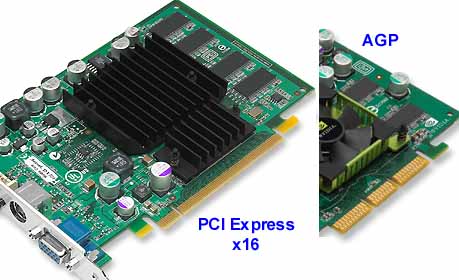
Graphics Cards & Monitors / Difference between PCI Express and AGB slots
« Last post by admin on September 13, 2011, 12:19:56 AM »
In our last update of Tom's Hardware Guide VGA Charts , we covered the AGP models that are currently available. However, now that PCI Express graphics cards are gaining in both market share and importance, it is time to take a look at the hardware in this category as well.
 
Over the past several months, both ATi and NVIDIA have launched a number of new graphics processors designed as native PCI Express parts. Additionally, there are also NVIDIA's GeForce PCX models as well as the GeForce 6800 Ultra and GT, which use an AGP processor connected to the PCI Express bus through NVIDIA's HSI Bridge chip. Add them all together and you have quite a multitude of PCIe products.
 
Although many of these models were officially presented months ago, many are still not readily available in the retail market, at least not in the higher speed grades. Things look brighter in the lower mainstream and low-budget segment, where availability does not seem to be an issue at all. Now that the market is showing definite signs of making the transition to PCI Express, availability should become less and less of a problem even at the high end, with manufacturers continuing to increase their output to meet growing demand.

39
Windows Operating Systems / Toshiba satelite pro L450D-12X system image recovery
« Last post by admin on September 12, 2011, 10:22:13 PM »
Please note that if you follow these instructions to action a system recovery, you will lose all your files and data.
a) Start up computer
b) Press F8 (when you see the Toshiba screen) to enter Advanced Boot Options
c) Select Repair Your Computer
d) When prompted for your keyboard input method, select United Kingdom and click Next
e) Select the Parent account and enter password: cometpar (or your own password if you have changed the default password)
f) Select System Image Recovery
g) Ensure Use the latest available image is selected and click Next
h) When presented with the choose additional restore options screen, click Next
i) When presented with the Re-image your computer screen, click Finish
j) You will be told that all data is going to be restored and asked if you want to continue. Click Yes
k) Your C: drive will then be restored. Expect this to take around 10 minutes
l) When prompted, click Restart now
m) Windows will restart and your computer will be reset to how it was when it was delivered to you.

a, TOSHIBA HDD Recovery Tool


Step 1 - "Initiating the HDD recovery procedure"

    Switch on the computer and press "F8" key while Toshiba logo appears. You will see the following screen.

    Choose the entry "Repair your Computer" and press "Enter":


    Wait till the following screen appears, choose the keyboard layout which matches the language of your keyboard and click on "Next".
    If unsure, just click on "Next".


    In the following screen a window with your username appears.
    Type your windows password as you would log on to your account and press "OK":


    The next screen offers several options to repair or diagnose your computer system.

    To start the recovery, click on "Toshiba HDD Recovery":


Step 2 - Performing the HDD recovery

    After passing the previous screen, you will be asked if a backup of your important data is already made.

    You can continue with the recovery process by clicking on "Next"


    Confirm the following screen also by clicking on "Next"


    You will be asked again if you want to recover your machine (and delete all files on your harddrive).

    There are no additional options regarding the harddrive, which can be set. Click on "Yes" to start the recovery.


    The recovery procedure starts immediately by formatting the harddrive and copying all needed files to the harddisk


    By pressing the "Restart" button to restart the machine, the recovery procedure is almost finished


Step 3 - Finishing the recovery process

    After the successful completion of the recovery process and the restart of your machine, the following screen should appear.


    The installation wizard of Windows Vista / Windows 7  will start up to guide you trough the setup for your newly installed system and to finish the installation of the operating system


b, TOSHIBA Recovery Wizard

"Initiating the HDD recovery procedure"

    Switch on the computer and press "F8" key while Toshiba logo appears. You will see the following screen.
    Choose the entry "Repair your Computer" and press "Enter":


    Wait till the following screen appears, choose the keyboard layout which matches the language of your keyboard and click on "Next".
    If unsure, just click on "Next".


    In the following screen a window with your username appears.
    Type your windows password as you would log on to your account and press "OK":


    The next screen offers several options to repair or diagnose your computer system.
    To start the recovery, click on "Toshiba Recovery Wizard":


    The Wizard will start now and shows you a warning message:


    WARNING!

    When the recovery is executed, all data will be deleted and rewritten.
    If you are restoring from a backup, did you make sure to backup all important data and configure Windows the way you want it restored?
    Please connect the AC Adapter.

    Press "OK" to continue

    The following Screen will apper, where you can choose between "Recovery mode" or "HDD erase mode"

    If you want to recover your Notebook, choose the first Option
    --> Recovery of Factory Default Software (Recover to out-of-box state)
    and go on with "Process 1" described below.


    If you want to Erase the hard disk, chose the second Option
    --> Erase the hard disk (Delete all the data and partitions from your hard drive)
    and go on with "Process 2" described later in this document.


Process 1 - "Recovery of Factory Default Software" (Recover to out-of-box state).

    There are three different ways to recover the Notebook.
    All three options will be decribed below.

        Recover to out-of-box-state (System Recovery Options are included)

        This Option sets your notebook back, to the Factory default status. The partitions will be deleted an created again, as they have been on the first boot

        Note:
        All data will be lost and HDD Recovery Option will still be available, if you want to recover your notebook again.

        Attention!
        Unplug all external storage devices like external HDDs, USB Stick, SD Card, etc. or you may loose your data on it!


        click "Next" to proceed


        You will get a warning screen, with following message:

        All partitions will be deleted and you will loose all data on the hard drive.
        Are you sure you want to continue?

        Please press [Next>] to start the Recovery.


        If you are sure, you saved all your data and if you want to proceed, click "Next"

        The partition will be initialized.


        After Initializing, the recovery process will start automatically:


        After the recovery process is finished, a crc check will be done, if the recovery was completed


        After the CRC check, the Recovery is complete and you need to click "Finish" to reboot your computer.


        Recover without changing the hard drive partitions


        Note:
        All data on the first partition will be lost and HDD Recovery Option will be still available, if you want to recover your notebook again.

        Attention!
        Unplug all external storage devices like external HDDs, USB Stick, SD Card, etc. or you may loose your data on it!


        Click "Next" to proceed.


        You will get a warning screen, with following message:

        The first partition will be deleted and you will loose all data on the partition.
        Are you sure you want to continue?

        Please press [Next>] to start the Recovery


        If you are sure, you saved all your data and if you want to proceed, click "Next"

        The partition will be initialized.
        (From this point, it is the same procedure as shown in the out-of-box process described above)

        Recover to a custom size partition

        Note:
        All data on the HDD will be lost and HDD Recovery Option will not be available anymore, if you want to recover your notebook again. Be sure to have a recovery DVD created for the future.

        Attention!
        Unplug all external storage devices like external HDDs, USB Stick, SD Card, etc. or you may loose your data on it!


        Choose the size, that you want to use for the system drive "C" (e.g. 260GB) and click [Next>] to proceed


        You will get a warning screen, with following message:

        All partitions will be deleted and you will loose all data on the hard drive.
        Are you sure you want to continue?

        Please press [Next>] to start the Recovery.


        If you are sure, you saved all your data and if you want to proceed, click "Next"

        The partition will be initialized.
        (From this point, it is the same procedure as shown in the out-of-box process described above)

Process 2 - "Erase the hard disk" (Delete all the data and partitions from your hard drive).

    There are two different ways to erase the harddisk of the Notebook.
    All two options will be decribed below.

        Delete all data and partitions from the hard disk (fast deletion process)

        Note:
        All data on the HDD will be lost and HDD Recovery Option will not be available anymore, if you want to recover your notebook again. Be sure to have a recovery DVD created for the future.

        Attention!
        Unplug all external storage devices like external HDDs, USB Stick, SD Card, etc. or you may loose your data on it!


        Click "Next" to proceed.


        You will get a warning screen, with following message:

        CAUTION
        You will lose all data on the hard disk using this operation

        The data on the following hard disk(s) will be deleted.
        1. Toshiba MKxxxxxxxGSX (this is an example)

        If you do not want to delete the data on the hard disk(s) listed above, please press [Cancel].
        If there is an external hard disk drive connected to your system, it will be listed above.
        However, if you do not want to delete the data from the external disk drive, disconnect it from your computer.
        The name of the disk drive will be removed from the list a few seconds later and you may then proceed.

        Press [Next>] to start deleting the data on the hard disk(s) in the list above


        Press "Next" now if you want to delete all your data on the listed hard disks.


        The hard disk(s) will be deleted now


        After the deletion has finished, you will get the following screen.

        Deletion of all data and partiotions is complete.
        Please press [Finish] to turn off the computer.


        Delete all partitions and overwrite all sectors on the hard disk (very slow deletion process)

        This may take several hours, depending on the size of your hard drive

        Note:
        All data on the HDD will be lost and HDD Recovery Option will not be available anymore, if you want to recover your notebook again. Be sure to have a recovery DVD created for the future.

        Attention!
        Unplug all external storage devices like external HDDs, USB Stick, SD Card, etc. or you may loose your data on it!


        Click "Next" to proceed.


        You will get a warning screen, with following message:

        CAUTION
        You will lose all data on the hard disk using this operation

        The data on the following hard disk(s) will be deleted.
        1. Toshiba MKxxxxxxxGSX (this is an example)

        If you do not want to delete the data on the hard disk(s) listed above, please press [Cancel].
        If there is an external hard disk drive connected to your system, it will be listed above.
        However, if you do not want to delete the data from the external disk drive, disconnect it from your computer.
        The name of the disk drive will be removed from the list a few seconds later and you may then proceed.

        Press [Next>] to start deleting the data on the hard disk(s) in the list above


        Press "Next" now if you want to delete all your data on the listed hard disks.


        The hard disk(s) will be deleted now


        After the deletion has finished, you will get the following screen.

        Deletion of all data and partiotions is complete.
        Please press [Finish] to turn off the computer.


40
Teamviewer uses port 80 by default to connect which causes issues with localserver if not configured on any other port.

When windows start, teamviewer waits a couple of minutes before it starts listening to port 80. If the port is not taken already by any other application, it starts using it.

If the application / server does not start before teamviewer, teamviewer will take the port 80 and once other application is run, it will give error. If you try opening localhost from the browser after running the apache or other server, it will give this error message:

    This site is running TeamViewer

To disable this behavior in TeamViewer version 5.1 or higher follow these steps:

    Launch teamviewer
    Goto Extras > Options
    In options window goto Advanced tab
    Enable the option “Don’t use incoming port 80″

This will prevent teamviewer from listening to port 80 and thus conflicting with any other application that you need to listen to port 80 too and there will be no more “this site is running teamviewer” error.
Pages: 1 2 3 [4] 5 6 ... 10